Transparent Header
Enhance includes a transparent header system that allows the Header and Utility Bar to overlay page content, creating a more immersive and editorial shopping experience.
Transparency can be configured globally from the theme settings and is automatically applied only to supported templates.
Navigate to:
Theme Settings → General → Transparent Sections
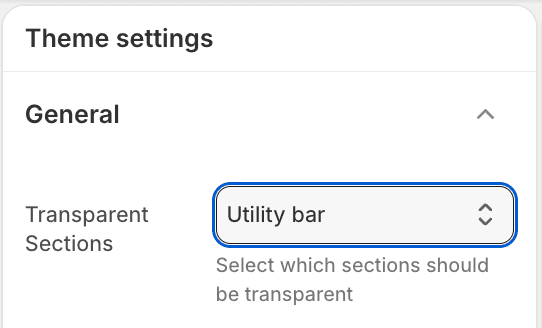
Available Options
None
The Header and Utility Bar use their standard background colors on all pages.
This is the recommended option for stores that prefer a traditional navigation experience.

Utility Bar Only
Only the Utility Bar becomes transparent while the Header retains its normal background color.
This option creates a subtle overlay effect while maintaining strong navigation visibility.

Header and Utility Bar
Both the Header and Utility Bar become transparent and overlay the page content.
This option is ideal for stores using large hero banners, slideshows, and editorial imagery.

Where Transparency Appears
Transparency is not applied across every page type.
By default, transparent elements are displayed on:
Homepage templates
Collection templates that support transparent headers
Other page types will display the standard Header and Utility Bar styling.
Transparent Header Logo
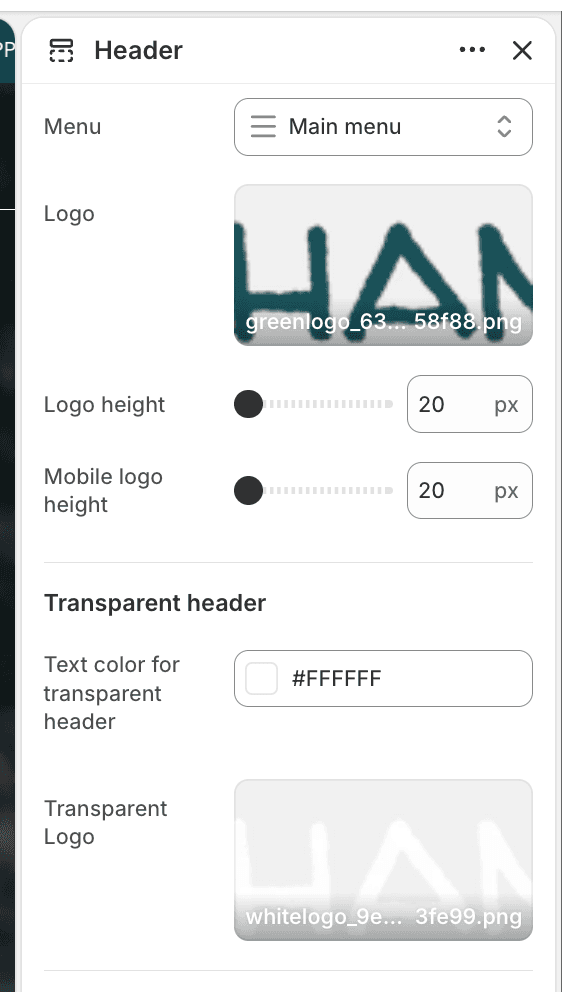
When using transparent headers, a separate logo can be assigned specifically for transparent states.
Navigate to:
Header → Transparent Header Logo
This is particularly useful when the primary logo does not have enough contrast against banner images or slideshows.
Examples:
Dark logo for standard header
White logo for transparent header
Transparent Header Text Color
You can also choose a dedicated text color for transparent states.
Navigate to:
Header → Transparent Text Color
This setting controls the color of:
Navigation links
Icons
Interactive header elements
while the header is transparent.
[INSERT IMAGE: Transparent Text Color Setting]
How the Header and Utility Bar Work Together
The Header and Utility Bar share the same transparency system.
Depending on the selected option:
Setting | Utility Bar | Header |
None | Standard | Standard |
Utility Bar Only | Transparent | Standard |
Header and Utility Bar | Transparent | Transparent |
This allows you to create different visual styles without modifying individual sections.
Best Practices
Use transparent headers with slideshows, hero banners, and large imagery.
Upload a dedicated transparent logo when necessary.
Ensure sufficient contrast between your imagery and transparent header text.
Test transparency on both desktop and mobile devices.
Use standard header styling if important content becomes difficult to read.