Custom Badges
Custom Badges allow you to highlight products using product tags. Badges are displayed on product cards and product pages, helping customers quickly identify featured products, promotions, collections, or special attributes.
Common uses include:
New Arrivals
Best Sellers
Limited Edition
Premium
Seasonal Collections
Promotional Campaigns
Setting Up Custom Badges
Navigate to:
Theme Settings → Products → Custom Badges
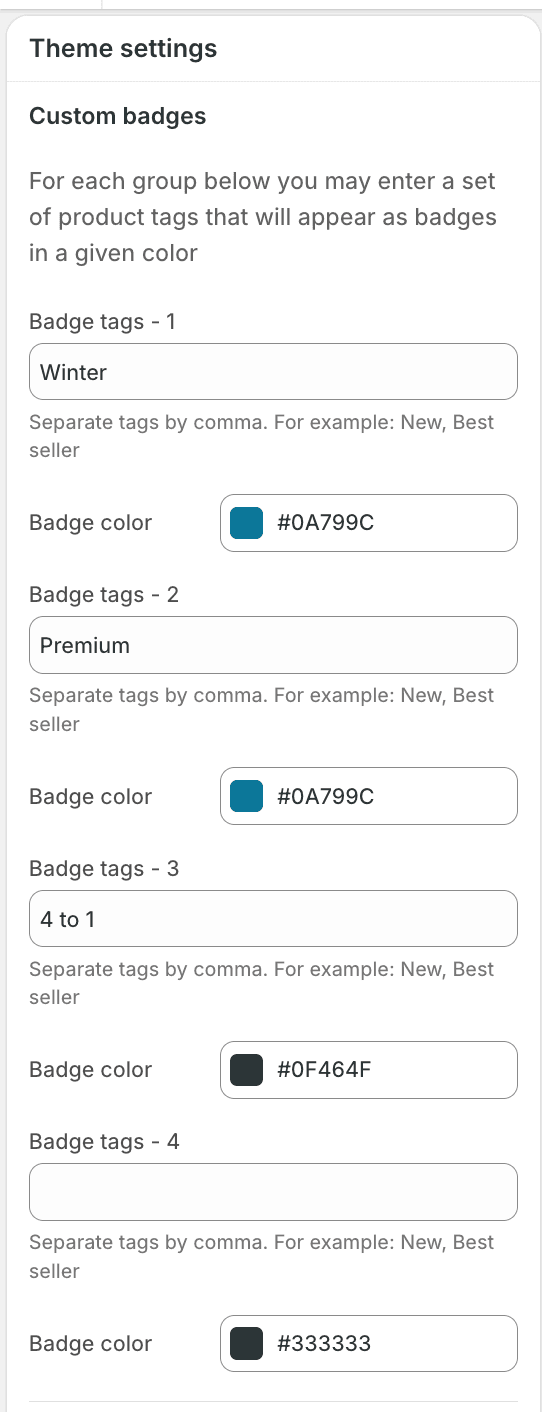
The Custom Badges settings allow you to create multiple badge groups. Each group consists of:
One or more product tags
A custom badge color
When a product contains a matching tag, the corresponding badge will automatically appear on the storefront.
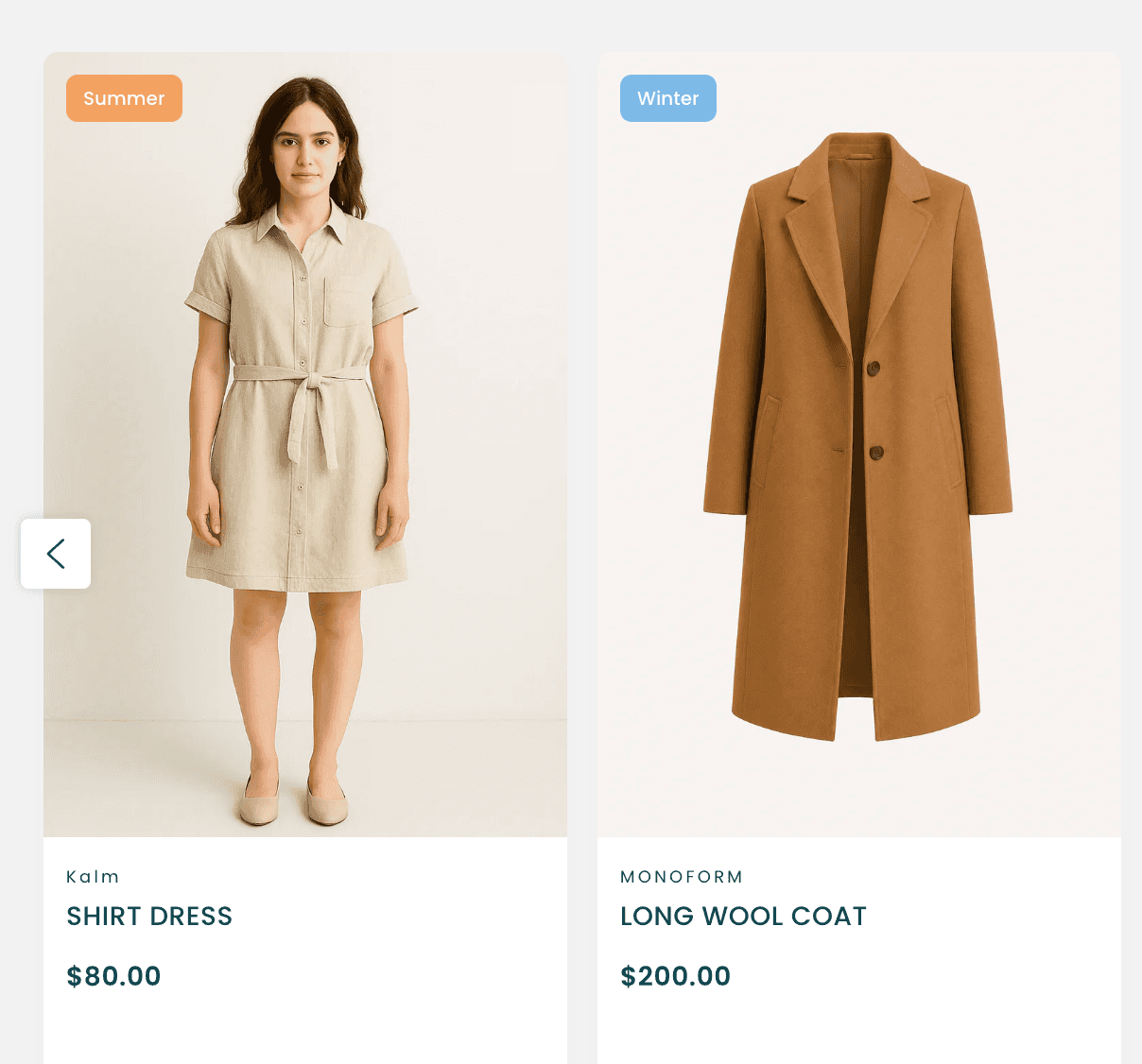
Creating a Badge
Each badge group contains two settings:
Badge Tags
Enter one or more product tags that should trigger the badge.
Multiple tags can be entered using a comma-separated list.
Example:
New, Best Seller, Trending
Any product containing one of these tags will display the badge.
Badge Color
Choose the color that should be used for the badge.
Each badge group can have its own color, allowing you to visually distinguish different types of badges.
Example Configuration
The following configuration:
Badge Tags - 1
Winter
Badge Color
#0A799C
will display a blue badge on any product tagged:
Winter
Similarly:
Badge Tags - 2
Premium
Badge Color
#0A799C
will display a badge on any product tagged:
Premium
And:
Badge Tags - 3
4 to 1
Badge Color
#0F464F
will display a dark green badge on any product tagged:
4 to 1
Applying Badges to Products
Once your badge groups have been configured:
Open a product in Shopify Admin.
Add the desired tag to the product.
Save the product.
The badge will automatically appear wherever product badges are displayed throughout the theme.
[INSERT IMAGE: Product Editor Showing Tags]
Badge Priority
A product can contain multiple tags that match different badge groups.
To keep product cards clean and consistent, we recommend assigning a primary promotional tag to each product whenever possible.
Best Practices
Use short badge labels for the best appearance.
Keep badge names consistent across your catalog.
Use distinct colors to separate different badge types.
Avoid adding too many badges to a single product.
Reserve badges for information that helps customers make purchasing decisions.
Examples of effective badge labels:
New
Premium
Limited
Exclusive
Best Seller
Winter
Organic
Troubleshooting
My badge is not appearing
Verify that:
The product contains the correct tag.
The tag matches the value entered in the Custom Badges settings.
The badge group has been configured correctly.
My badge color is incorrect
Verify that the correct color has been assigned to the badge group within the theme settings.
Multiple products are showing the same badge
This is expected behavior. Any product containing a matching tag will display the corresponding badge automatically.