Color Swatches
Color swatches provide a more visual way for customers to select product variants. Instead of displaying variant names as text, Enhance can display color circles using either HEX color values or custom image swatches.
Color Swatch Settings
Navigate to:
Theme Settings → Color Swatches
The Color Swatches settings allow you to define which variant options should display as swatches and assign custom colors or images to individual variant values.

Variant Label for Swatches
Use the Variant label for swatches to define which variant options should display as color swatches.
For example:
Color
To support multiple option names, use a comma-separated list:
Color, Style, Finish
Any product variant option matching one of these names will automatically display as a swatch selector.
Custom Colors
The Custom colors field allows you to assign either HEX color values or image swatches to individual variant values.
Each entry must be placed on a new line.
Using HEX Colors
Use the following format:
<Color Name>: <HEX Value>
Example:
Blue: #6F98A6
Dark Green: #263425
Beige: #C7B08A
Navy: #1C2F3A
Dark Blue: #355E77
Dark Brown: #5A3A24
When a customer views a product with one of these variant values, Enhance will display the corresponding color swatch automatically.
Using Image Swatches
Image swatches are useful for patterned fabrics, prints, textures, or materials that cannot be represented accurately with a single color.
Use the following format:
<Variant Name>: <Image Filename>
Example:
Apricot Meadow: floral-dress-1-pattern.png
Bluebell Garden: floral-dress-2-pattern.png
The referenced image must be uploaded to your store's Files section.
Navigate to:
Content → Files
Upload the image and use the exact filename in the Color Swatches setting.
Frontend Example
When configured correctly, customers will see visual swatches instead of standard text options.
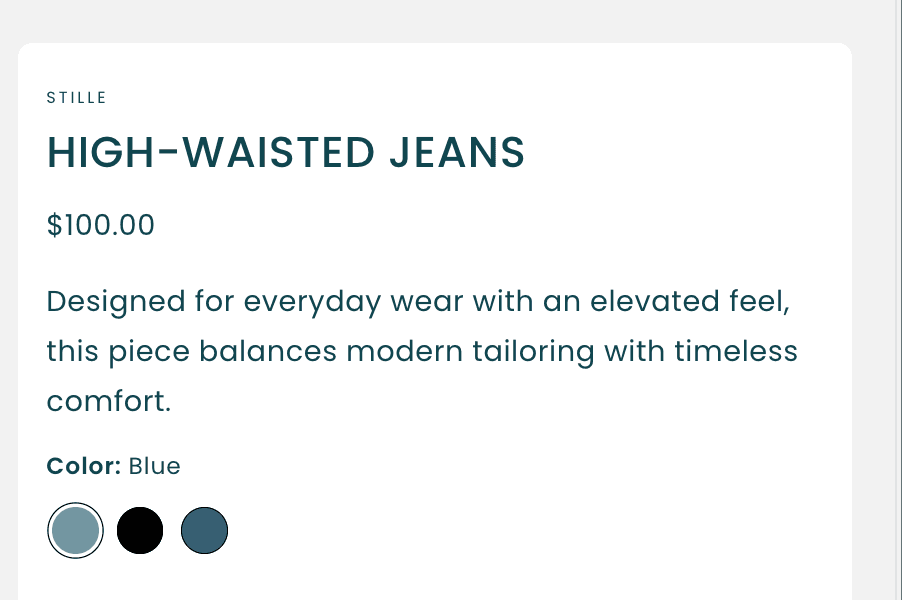
In the example above:
Blue uses a custom HEX color value.
Black uses a standard color swatch.
Dark Blue uses a custom HEX color value.
The currently selected option is highlighted automatically.
Best Practices
Use HEX colors whenever possible for solid colors.
Use image swatches for prints, patterns, and textured materials.
Keep variant names consistent across your catalog.
Use high-quality swatch images with square dimensions for the best results.
Avoid creating multiple names for the same color (for example: "Navy", "Dark Navy", and "Navy Blue") unless they represent different products.
Troubleshooting
My swatches are displaying as text
Make sure the variant option name matches one of the values entered in the Variant label for swatches setting.
My custom color is not appearing
Verify that:
The variant value matches the custom color name exactly.
The HEX value is formatted correctly.
Each color entry is on a separate line.
My image swatch is not displaying
Verify that:
The image has been uploaded to Shopify Files.
The filename matches exactly.
The image extension is included (.png, .jpg, .webp, etc.).